How to Set Up Your Baby Monitor for the Best View and Connection
Quick Answer
Mount the camera four to six feet above the crib and angle it down for a full overhead view, or set it on a shelf at least three feet away if drilling is not an option. Every cord stays a minimum of three feet from the crib, with no exceptions, because dangling cords are a strangulation hazard. Test range, night vision, and audio before your baby ever uses the room.
Our Verdict
Wall-mount the camera if you can, because shelf placement drifts and shelves get bumped. Put a Wi-Fi model on the 2.4GHz band for range and change the default password the day you unbox it. Choose a closed-circuit unit instead if you would rather not manage firmware and passwords at all. Never run a cord across, behind, or above the crib to make the angle work.
As an Amazon Associate I earn from qualifying purchases. Product prices and availability are subject to change.
How to Set Up Your Baby Monitor for the Best View and Connection
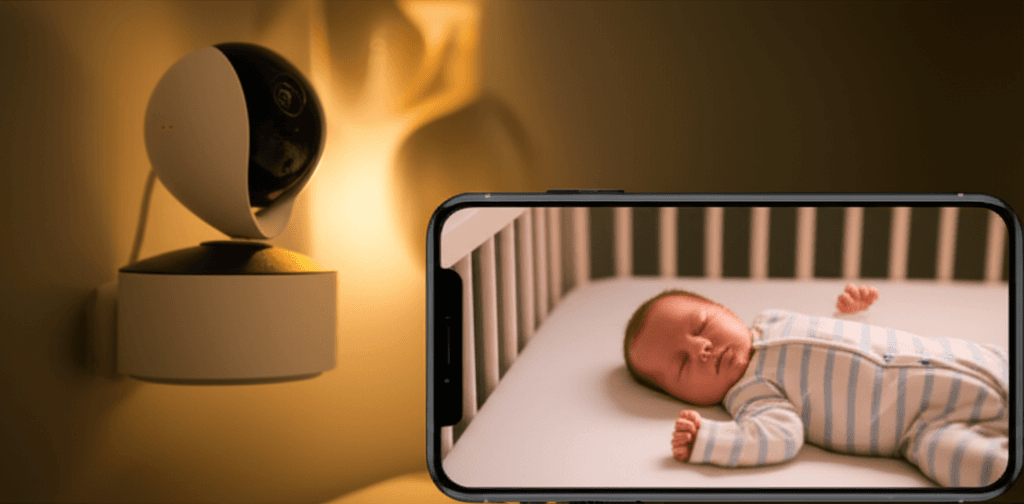
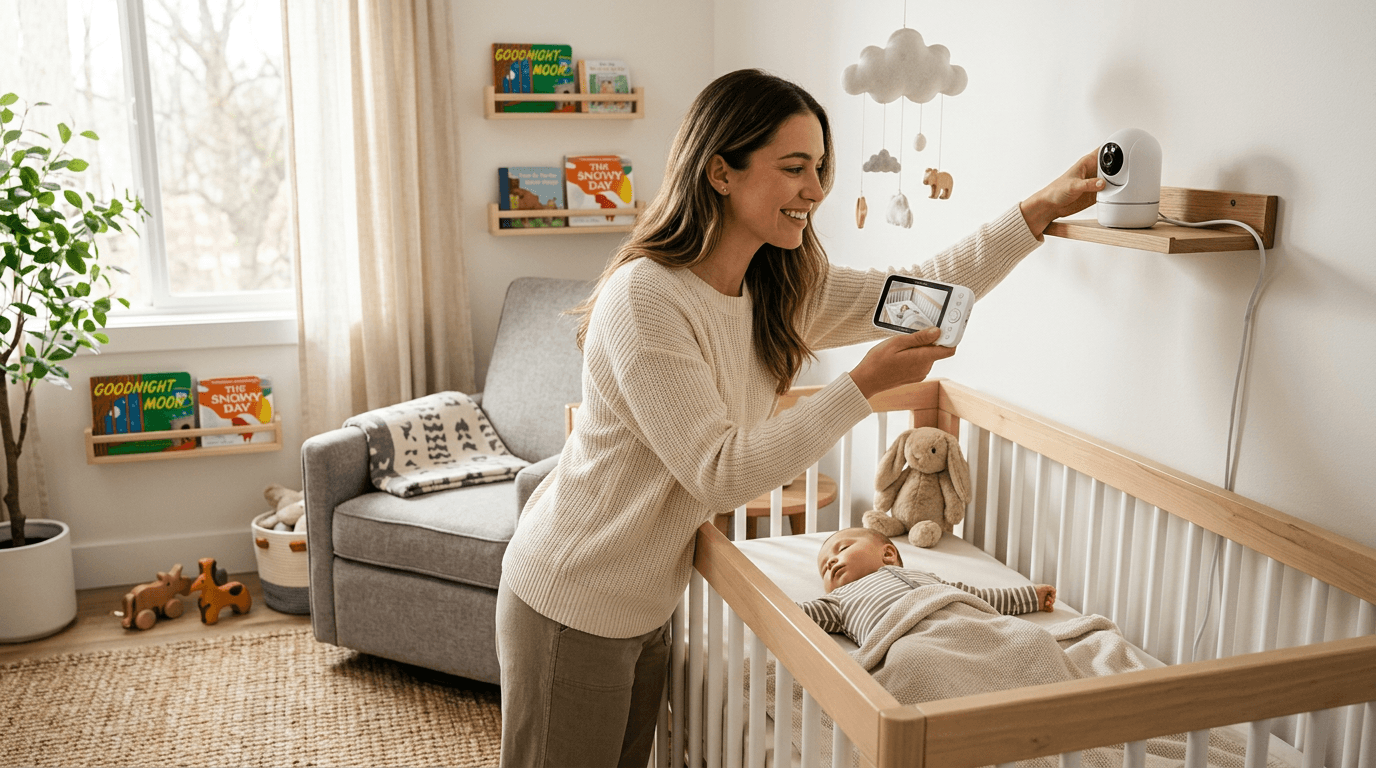
To set up your baby monitor for the best view and connection, mount the camera 4-6 feet above the crib at a downward angle for the clearest overhead view. If wall-mounting isn't possible, place it on a shelf or furniture at least 3 feet from the crib. The single most critical safety rule:
Cords, always: Keep all cords at least 3 feet away from the crib. Cords pose a serious strangulation hazard.
The CPSC has documented multiple infant deaths from strangulation by baby monitor cords and issued a specific safety warning advising that all cords be kept completely out of a child's reach. For WiFi monitors, use a strong unique password and enable two-factor authentication — the FTC specifically warns that cameras left on their default passwords are easy targets, and recommends switching to a strong unique password, turning on two-factor authentication, and installing firmware updates as soon as they arrive.
Where should you place the baby monitor camera?
Wall-mounted vs. shelf-placed
| Wall-mounted | Shelf or dresser | |
|---|---|---|
| Angle | Better — angled down toward the crib | Depends on furniture height |
| Cord reach | Completely out of baby's reach | Requires careful cord management |
| Effort | More involved | Easier |
Most video monitors support either.
The ideal angle
Position the camera to capture the full crib from above and to the side. The Nanit Pro is designed for direct overhead mounting, which provides the best full-crib view. Side-mounted cameras should be angled to see baby's face and chest clearly.
Distance from crib
The camera should be at least three feet from the crib. This gives you a wide enough view of the entire sleep area and keeps the device safely away from baby. For cameras with zoom, being slightly further away gives you more flexibility.
Cord safety — this is critical
Camera cords are a strangulation hazard. The cord must be completely out of baby's reach — at least three feet from any crib edge. - Run cables along the wall and baseboards using cord covers
- Keep the cord at least three feet from any crib edge
- Never drape a cord across or near the crib, even temporarily
This is the single most important safety rule for monitor setup.
The CPSC has documented at least 7 infant and toddler deaths from strangulation by baby monitor cords since 2002. CPSC guidelines mandate that all cords must be at least 3 feet away from any point a child can reach, including from inside the crib. Several manufacturers have introduced cordless battery-powered monitors or magnetic flat-cable designs specifically to mitigate this risk.
How do you set up a WiFi baby monitor?
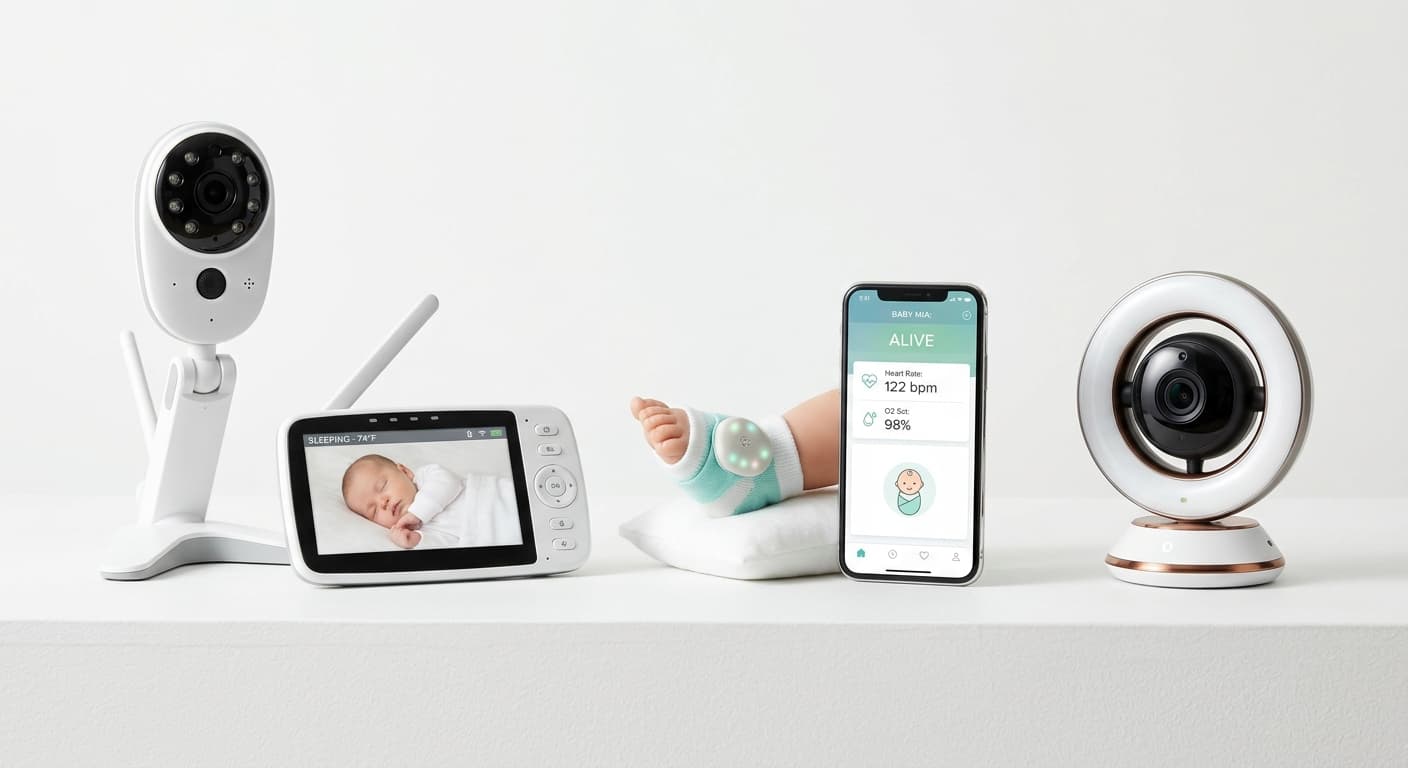
Most smart monitors like the Nanit Pro and Owlet cam connect through your home WiFi. A reliable connection prevents the most common complaints about smart monitors: lag, disconnections, and poor video quality.
Router placement
Your WiFi router's distance from the nursery matters. If the nursery is far from your router, consider a WiFi mesh system or extender to ensure strong signal in the room.
The FCC requires that WiFi baby monitors comply with Part 15 emission rules and operate within approved power levels. For optimal performance, the AAP's HealthyChildren.org recommends placing WiFi routers in a central location in the home and using the 2.4GHz band for baby monitors, which offers better range through walls than 5GHz, even though it provides lower bandwidth.
2.4GHz vs. 5GHz
Most baby monitors connect to the 2.4GHz WiFi band, which has better range but slower speeds than 5GHz.
- If your router broadcasts both on the same network name, the monitor should connect automatically
- If you have separate network names, connect the monitor to the 2.4GHz network
Bandwidth considerations
Video monitors stream continuously, using about 1-3 Mbps depending on video quality settings. If you have many smart home devices or limited internet bandwidth, consider reducing the monitor's video quality in the app settings to prevent buffering and disconnections.
How do you set up a non-WiFi baby monitor?
Dedicated monitors like the eufy E21 use their own radio frequency connection. Setup is simpler — pair the camera with the parent unit following the manufacturer's instructions, and you're done. These monitors aren't affected by internet outages or WiFi congestion, which is a significant reliability advantage.
Range testing
Walk around your home with the parent unit to test range. Most claim 800-1000 feet, but walls, floors and interference reduce real-world range. Test in all the spots you'll actually be:
- Kitchen
- Living room
- Bedroom
- Yard
How should you configure the monitor's sound settings?
Volume and sensitivity
Set the monitor's sound sensitivity to a level that picks up crying but doesn't trigger on every rustle and sigh. Most parents start with high sensitivity and gradually decrease it as they learn the difference between sleep noises and wake-up cries.
Sound machine interference
If you use a white noise machine in the nursery (and you should — see our sleep essentials guide), the monitor needs to filter through that background noise. Most modern monitors handle this well, but test it: turn on the sound machine and have someone talk at normal volume near the crib. Can you hear them clearly through the monitor?
How do you keep your baby monitor secure from hackers?
Four things, in order of impact:
- Change default passwords — default passwords are easily found online
- Enable two-factor authentication — if the manufacturer offers it
- Keep firmware updated — enable automatic updates or check every few months
- Consider non-WiFi for maximum privacy — no internet connection means no remote hacking possibility
Change default passwords
If your monitor has an app login, use a strong, unique password. Default passwords are easily found online and could allow strangers to access your camera feed.
A 2023 report from the Cybersecurity and Infrastructure Security Agency (CISA) found that internet-connected nursery devices, including baby monitors, are among the most frequently targeted IoT devices by unauthorized users. The FTC has taken enforcement action against baby monitor manufacturers for inadequate security practices, including a 2016 case involving unsecured live camera feeds.
Enable two-factor authentication
If the manufacturer offers it (Nanit does), enable two-factor authentication for your account.
Keep firmware updated
Manufacturers release security patches through firmware updates. Enable automatic updates or check manually every few months.
Consider non-WiFi for maximum privacy
If the idea of your baby monitor being connected to the internet concerns you, a non-WiFi monitor like the eufy E21 eliminates that risk entirely. No internet connection means no remote hacking possibility.
How do you get the best night vision from your monitor?
Test before baby arrives
Set up the monitor and check the night vision quality in complete darkness.
- Can you see baby's chest rise and fall?
- Can you see their face clearly enough to tell if they're awake?
If not, adjust the camera angle or position.
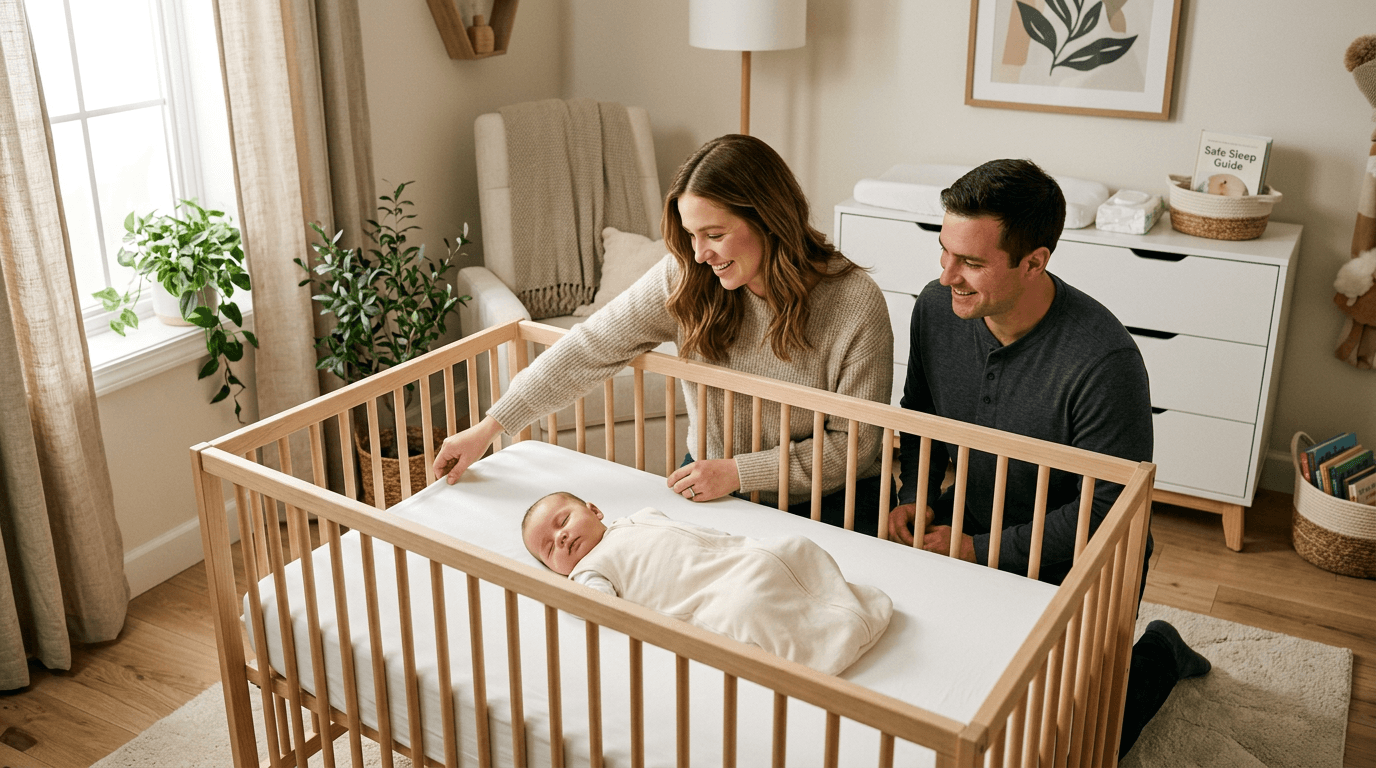
The AAP recommends setting up and testing all nursery equipment, including monitors, at least 2-4 weeks before the baby's due date. Testing night vision quality, audio sensitivity, and WiFi reliability in advance allows time to troubleshoot issues or exchange defective units without the stress of a newborn at home.
Infrared LED glow
Most night vision cameras emit a faint red glow from infrared LEDs. This is invisible to babies and won't disturb their sleep. If you see it and it bothers you, it's completely harmless.
How do you set up multiple monitor cameras?
If you have more than one room to monitor (nursery plus playroom, or two children's rooms), many systems support multiple cameras on one parent unit or app. The eufy system supports up to four cameras, and most WiFi monitors let you add cameras to the same app account.
Split screen vs. camera switching
Some parent units show split-screen views of multiple cameras. Others let you switch between cameras. Split screen is more convenient but reduces the size of each video feed. Consider what matters more to you.
How do you fix common baby monitor problems?
| Problem | Usual cause | Fix |
|---|---|---|
| Frequent disconnections | WiFi signal strength | Move your router closer, add a WiFi extender, or switch to a non-WiFi monitor |
| Poor night vision | Something reflecting the infrared light back at the camera — mirrors, shiny surfaces | Reposition the camera |
| False motion alerts | Ceiling fans, curtain movement from HVAC, changing light from windows | Adjust motion sensitivity in the app settings |
What's the most important thing to know about monitor setup?
Proper setup maximizes your monitor's effectiveness and keeps your baby safe. Three things carry most of the value:
- Wall-mount when possible
- Manage cords meticulously
- Secure your WiFi connection For our specific monitor recommendations, read our best baby monitors of 2026 roundup. The peace of mind a well-set-up monitor provides is worth every minute of installation effort.
Further Reading
💬 Real Talk from Parents
Wi-Fi monitors sound great until your internet goes out at 2 AM.
You'll check the baby monitor more times than your phone notifications.
You don't need a $300 smart monitor. But you'll probably buy one anyway.
Get a non-wifi monitor if you can. No app crashes, no firmware updates, no anxiety about hacking. Just works.
Paraphrased community consensus — not a direct quote.
Wi-Fi monitors can be easily hacked.
Modern encrypted Wi-Fi monitors are very difficult to hack. Use a strong password, enable two-factor authentication, and keep firmware updated — same security hygiene as any smart device.
You need a breathing/oxygen monitor for safe sleep.
The AAP does not recommend consumer breathing monitors. They produce false alarms that increase anxiety and are not clinically validated to prevent SIDS. Safe sleep practices (back sleeping, firm surface, no loose bedding) are what matter.
Research Sources
Hilly Shore Inc.
Editorial teamIndependent product research team behind Cribworthy. Reviews are grounded in published AAP / CDC / NHTSA / CPSC pediatric guidance, JPMA / GREENGUARD GOLD / OEKO-TEX certification verification, and aggregated buyer sentiment.
124 products reviewed · 22 categories covered · cites AAP, CDC, NHTSA, CPSC, FDA, ACOG.
Safety claims are verified against published pediatric guidelines and CPSC databases. See our editorial standards.